For memory and learning
Spaced Loop
Use a Spaced Loop for vocabulary, facts, presentation notes, work procedures, or anything you want to recall again later.
Follow the real English app screens to create a Loop, handle a reminder, and learn the main tools in Feathly Smart Planner.
Feathly helps you bring back information you want to remember and actions you want to repeat.
Use a Spaced Loop for vocabulary, facts, presentation notes, work procedures, or anything you want to recall again later.
Use a Routine Loop for scheduled actions such as medication, exercise, cleaning, inspections, or weekly checks.
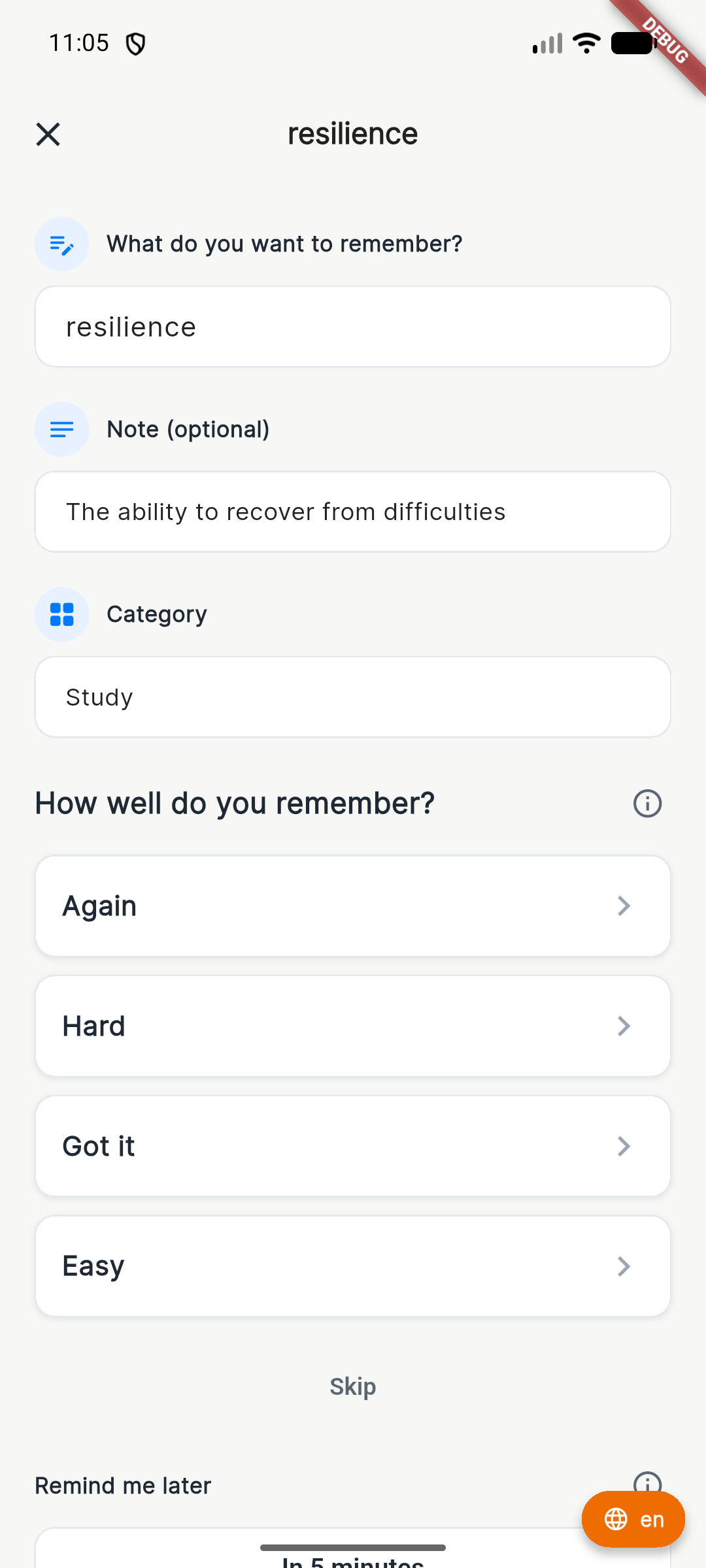
Try to recall first, then check the note and choose the result that matches your attempt.
Choose by the purpose of the item, not only by its title.
“Study English every evening” can be a Routine Loop. Each new word can be a separate Spaced Loop.
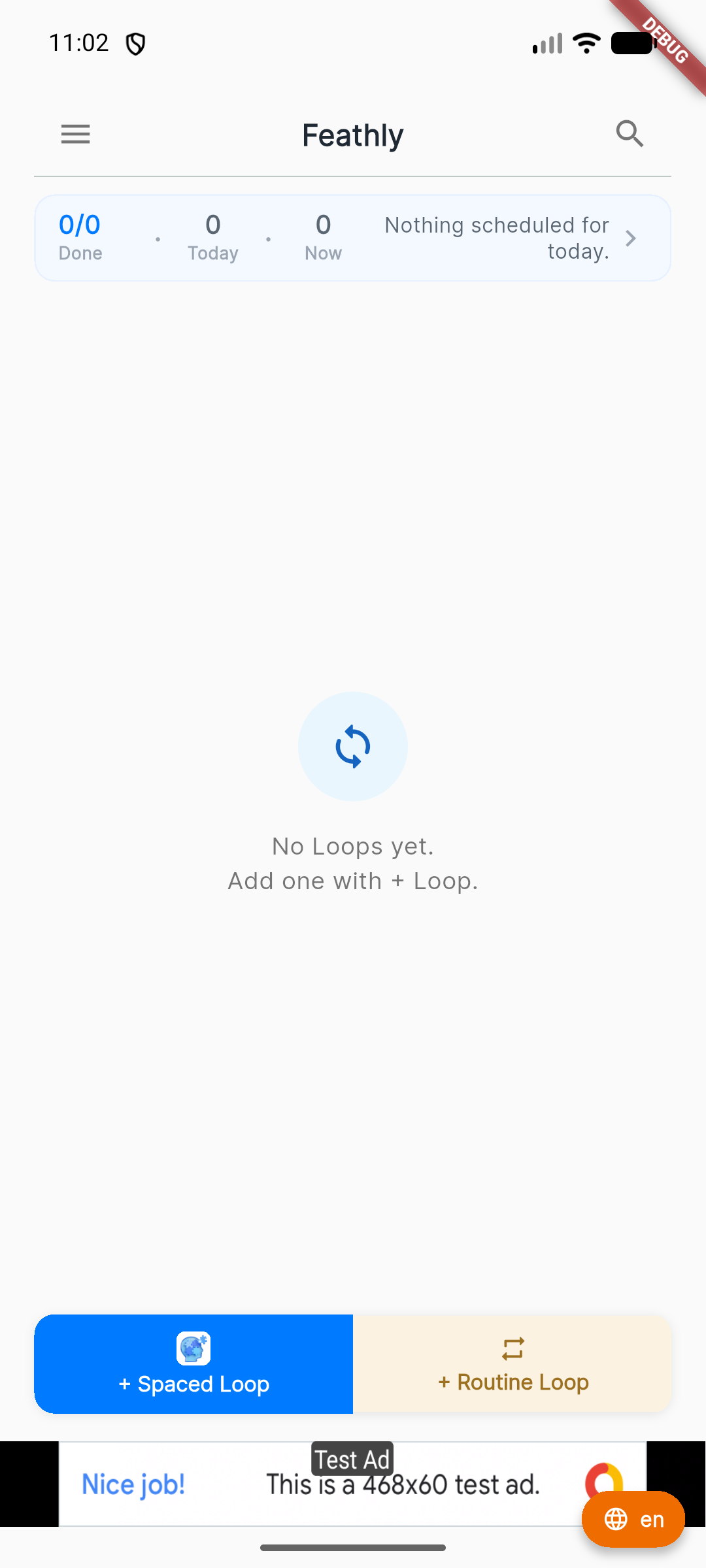
Home groups reminders by when they need your attention.
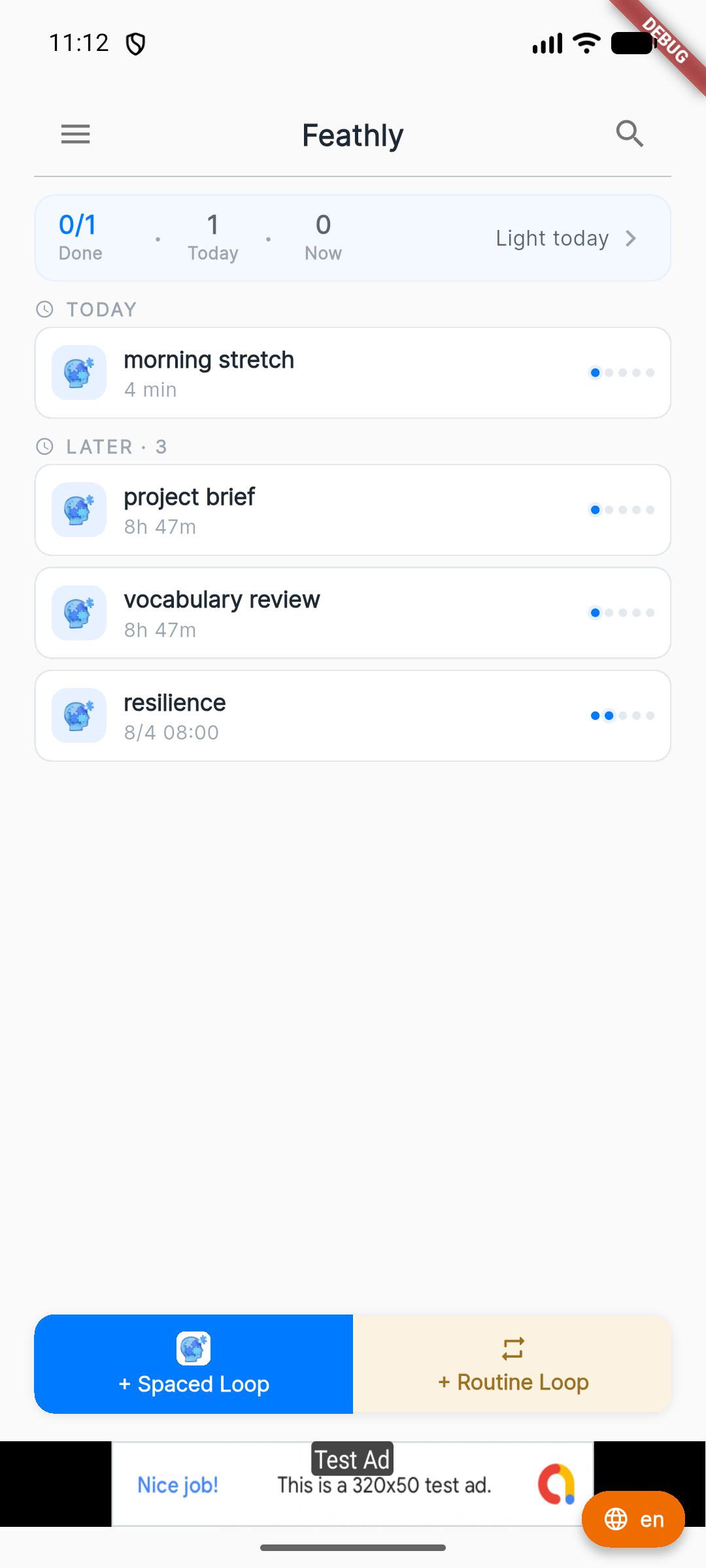
Use a Spaced Loop for a word, fact, idea, or note you want to remember.
From Home, tap the blue + Spaced Loop button.
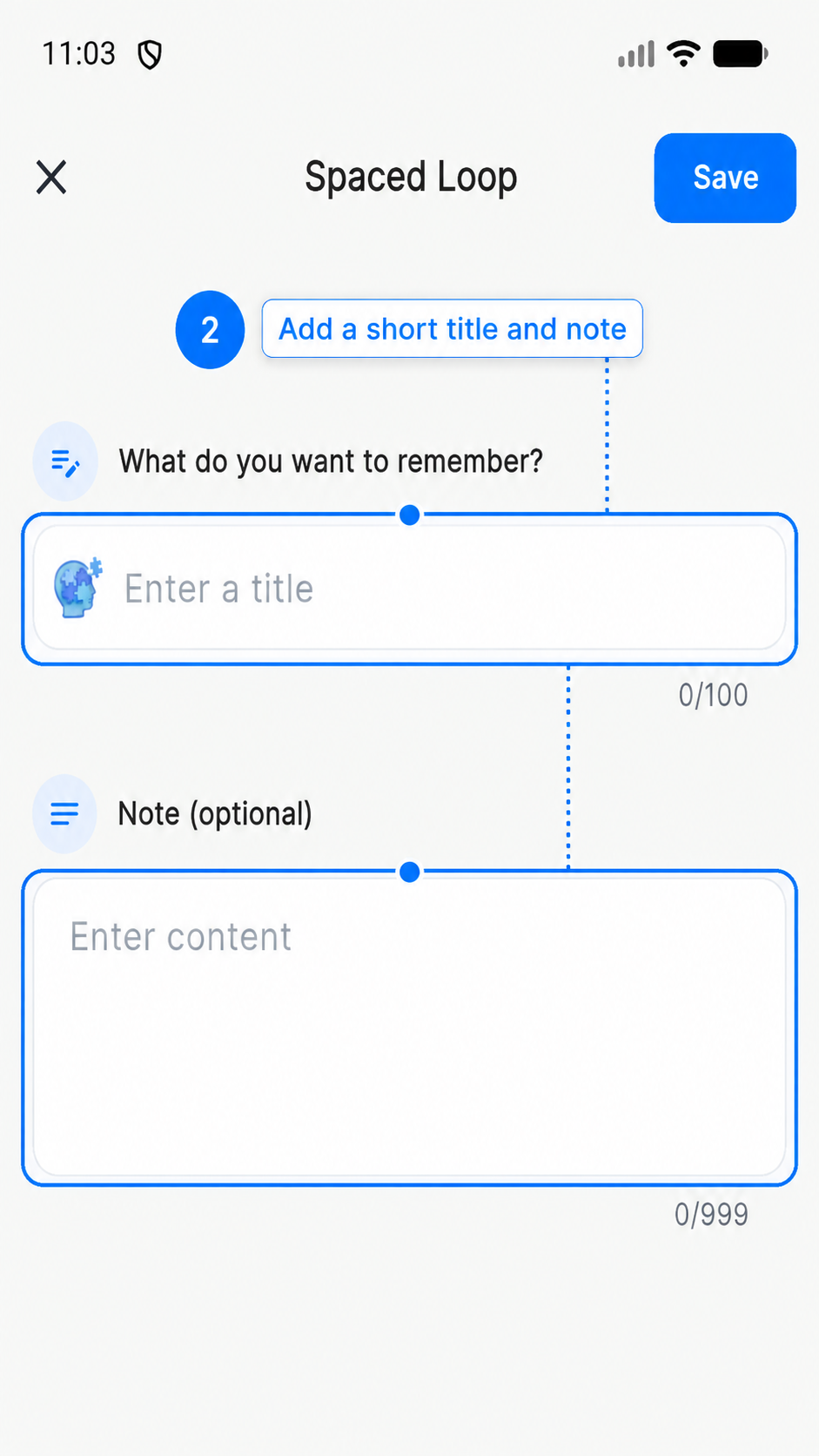
Keep the title short. Put the answer or explanation in the note.
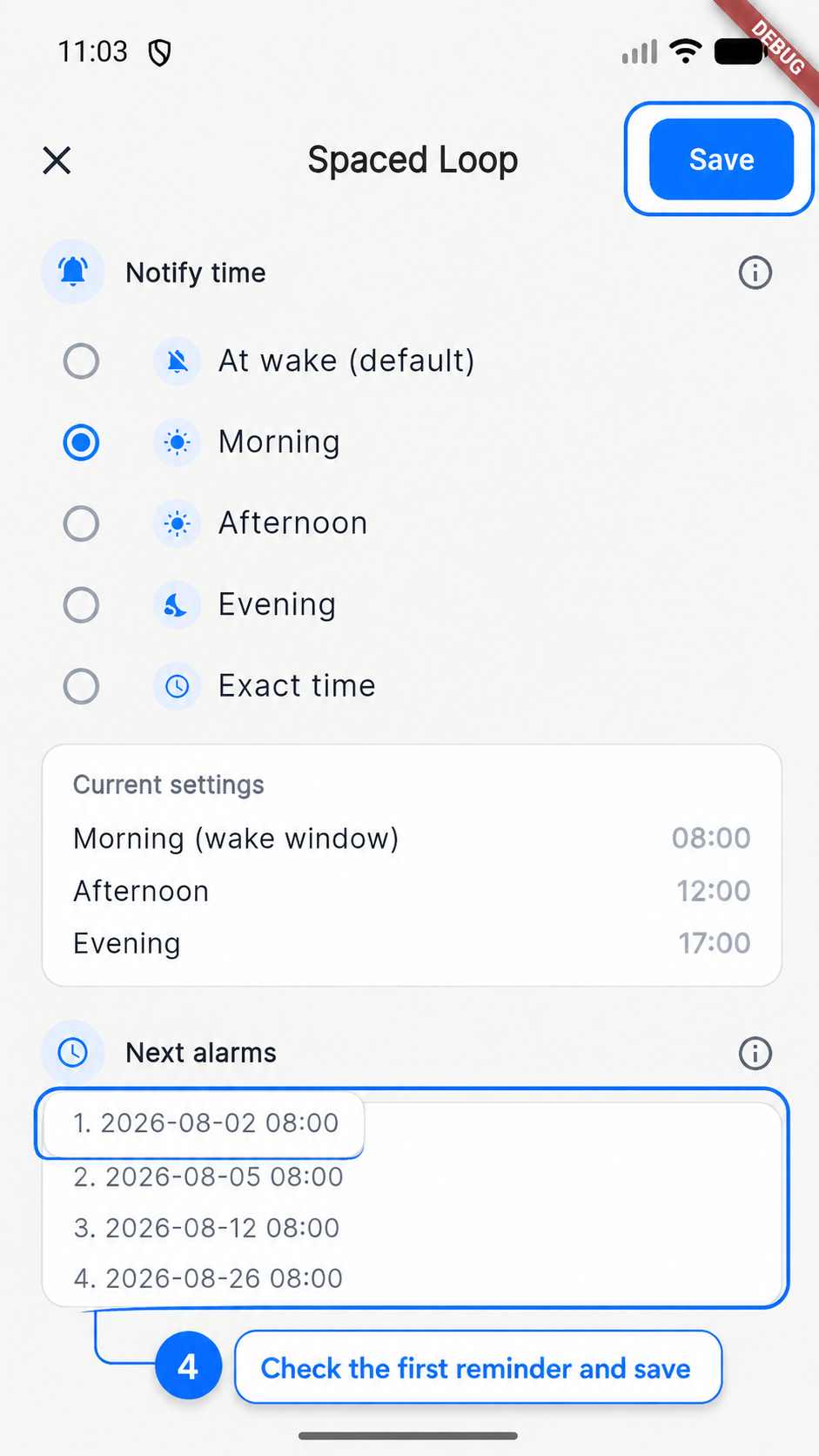
For your first Loop, leave the default review pattern unchanged.
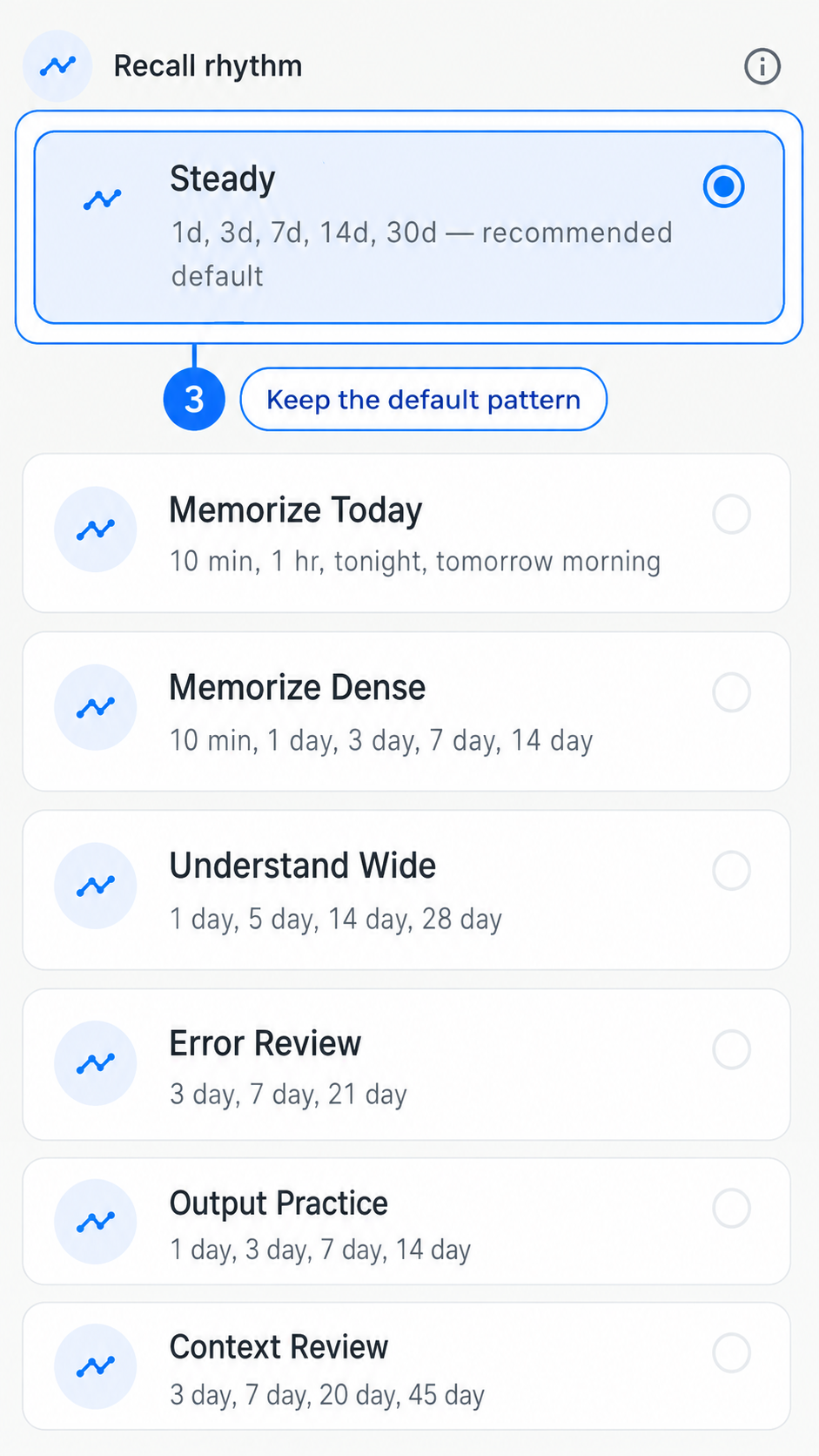
Confirm the first reminder time, then tap Save.
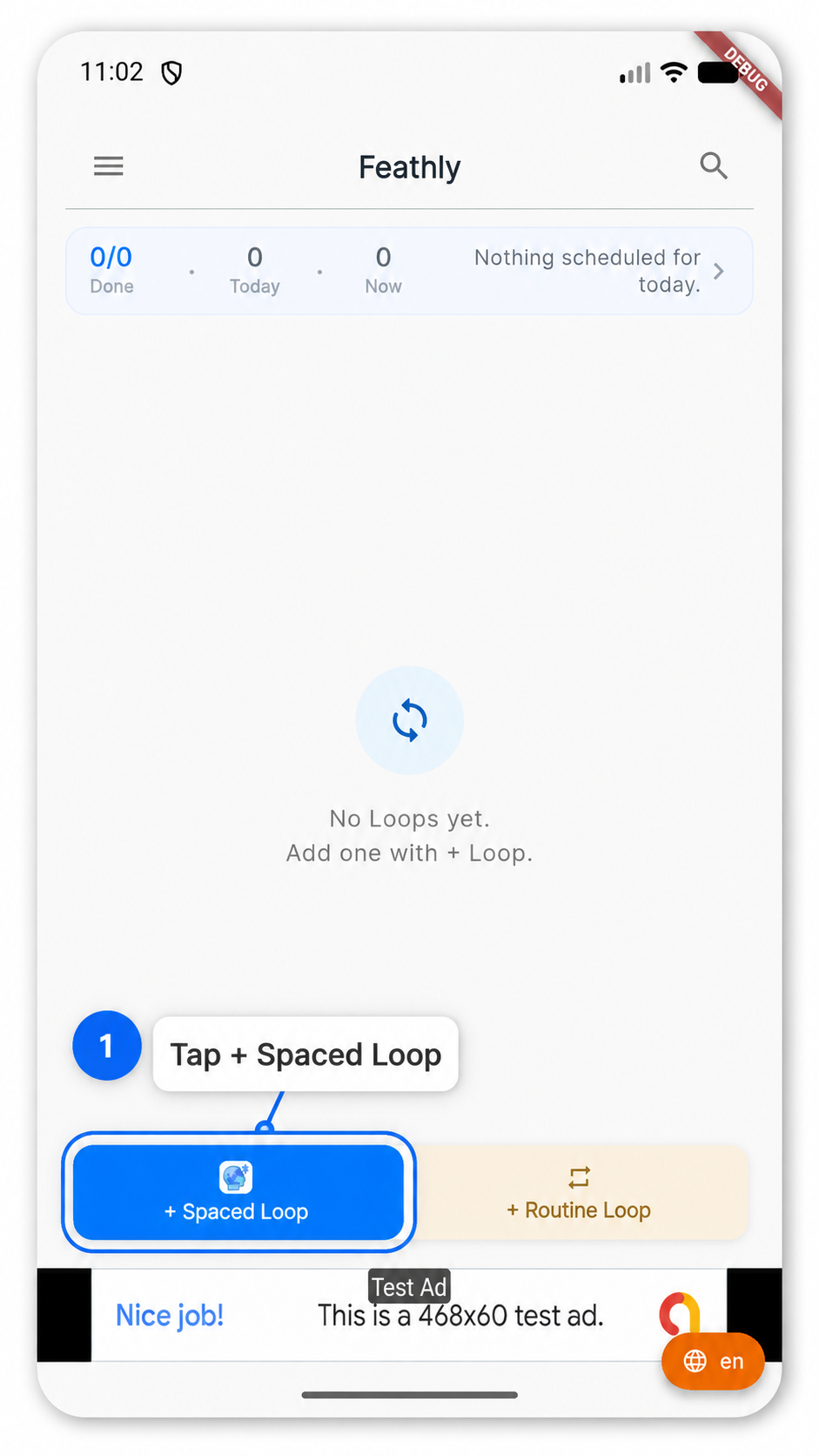
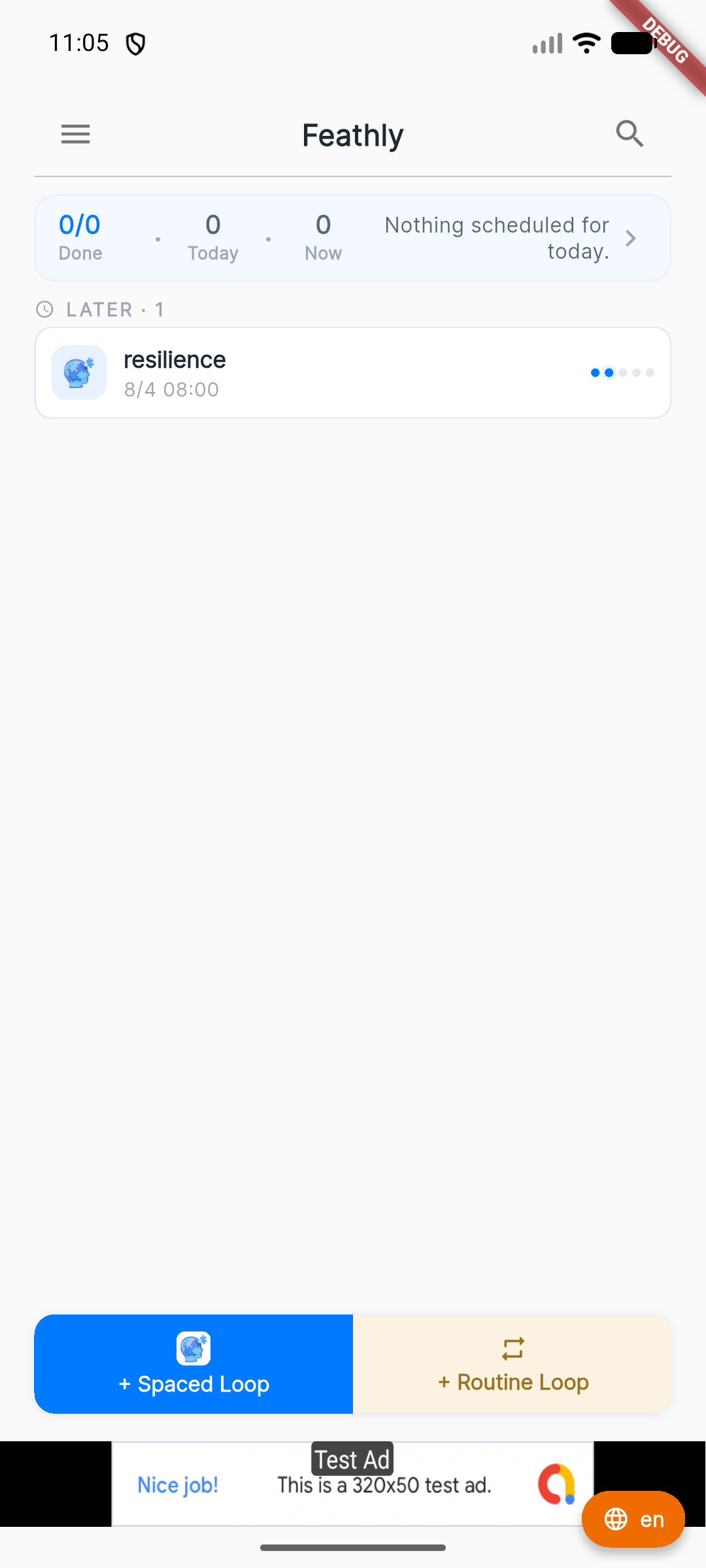
The Loop will appear on Home. When it is ready, try to remember the answer before opening the note.
Open a Spaced Loop and choose the result that best matches your recall attempt.
Use a Routine Loop for an action that repeats on a regular schedule. Follow these four steps and use the blue boxes to find each setting.
Give the action a short name. Add a note only when you need a checklist or extra instructions.
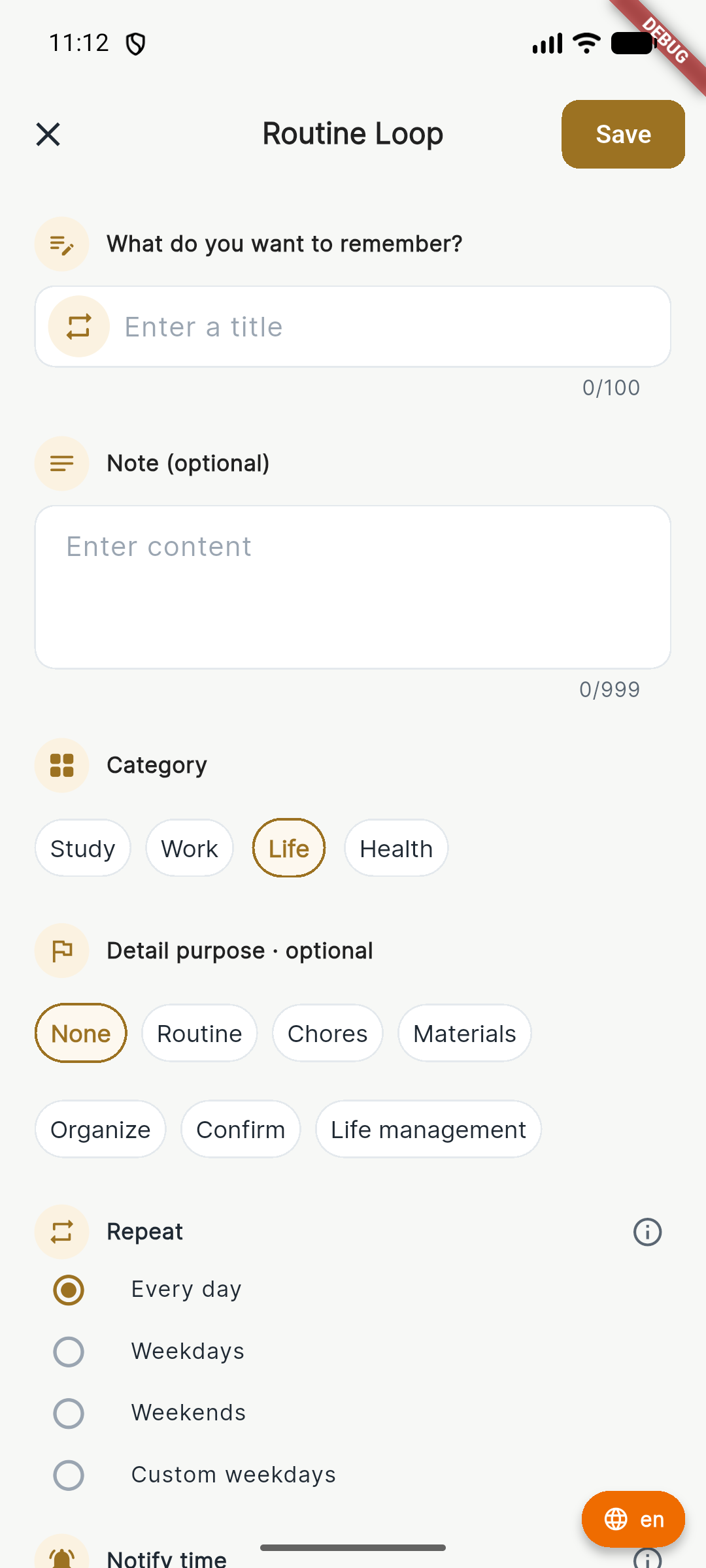
Select how often the action repeats, such as daily, weekly, or monthly.
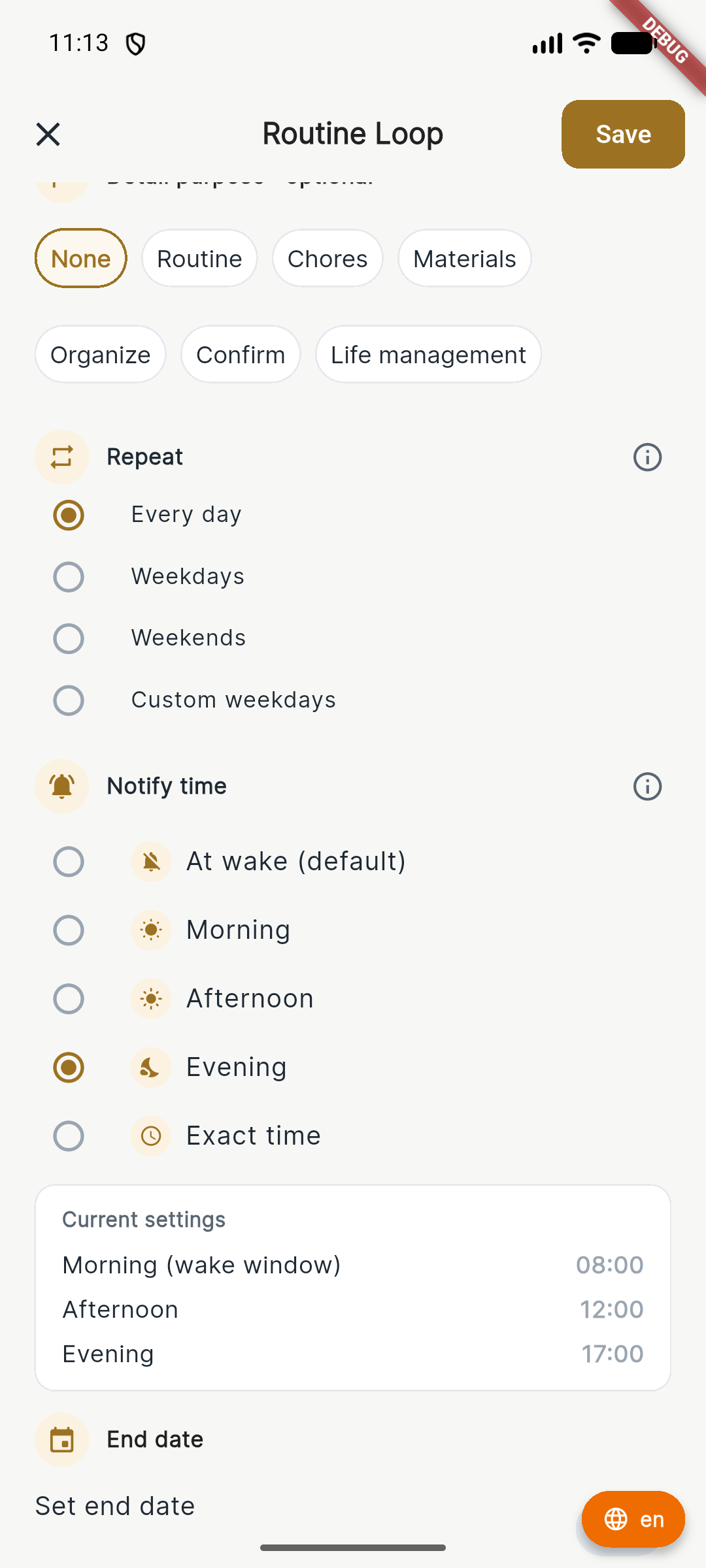
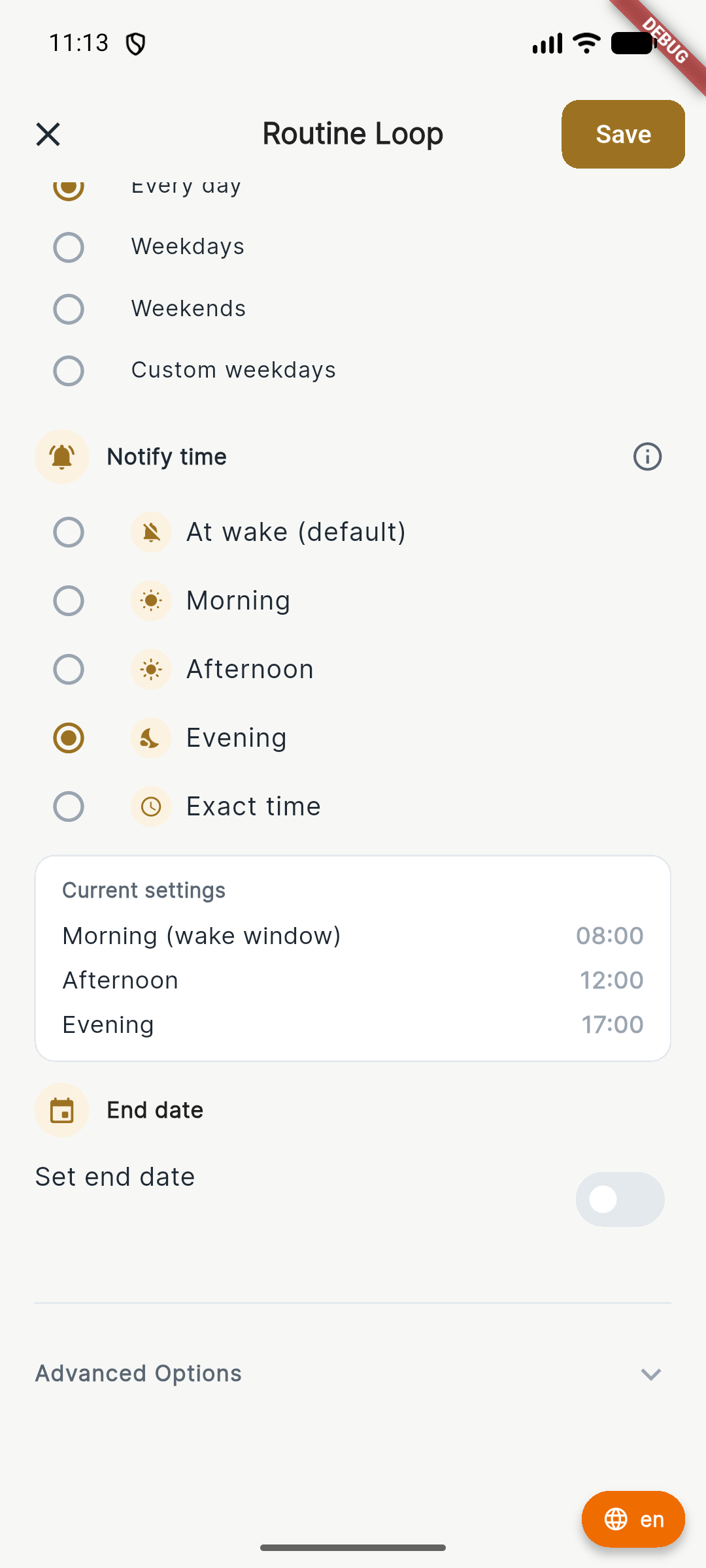
Choose the day and time, check notification options, and then tap Save.
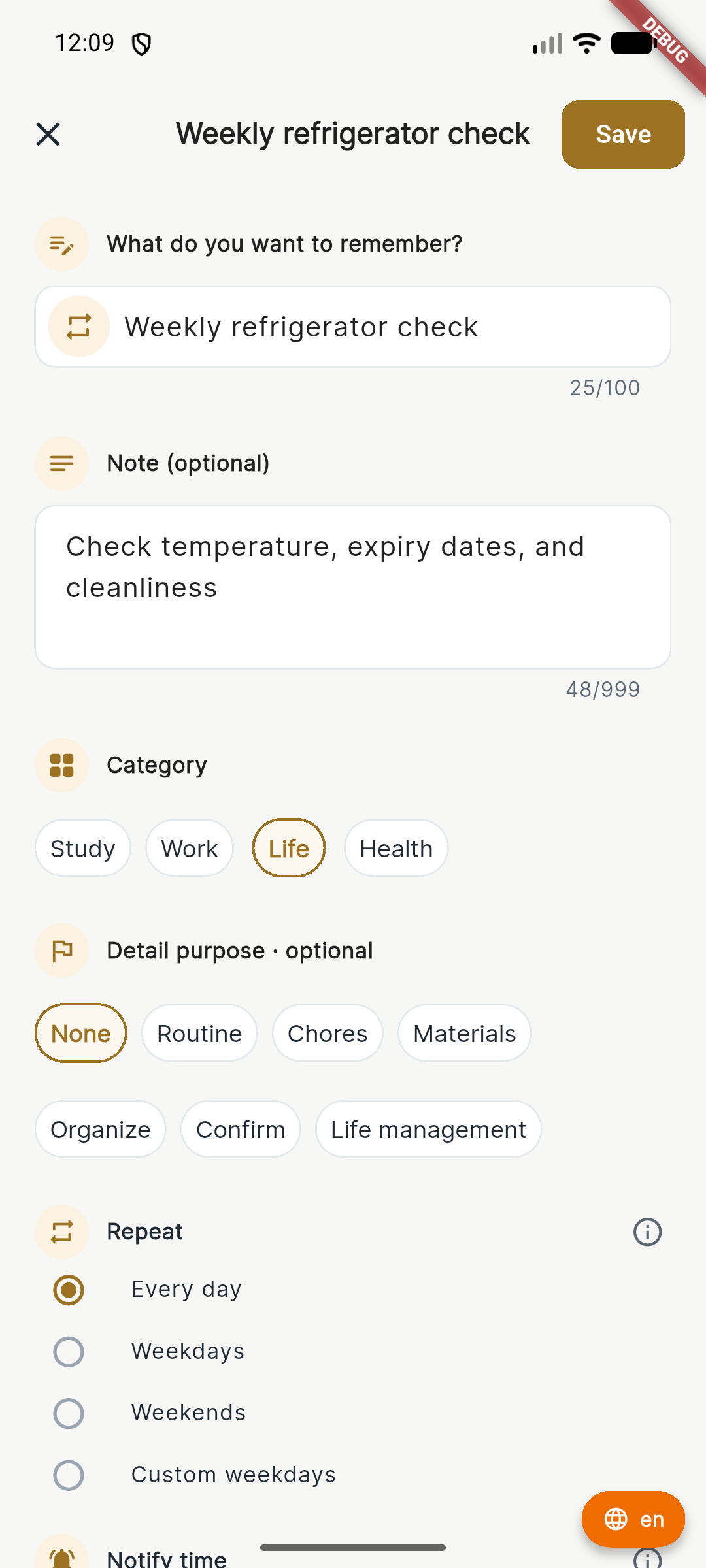
After saving, open the Routine and check its note, category, and repeat settings. When it appears on Home, open it and mark it complete.
When the Routine appears in NOW or TODAY, open its card, finish the action, and tap Complete. Smart Planner will then schedule the next Routine.
Focus Timer alternates focused study time with short breaks for the number of rounds you choose. This repeating rhythm helps you stay focused, study consistently, and support better learning and memory.
Start a session in four simple steps.

Open the main menu on Home and tap Focus Timer.
Pick a timer template and tap its blue play button.
Check the repeat count and linked Loop, then tap Start Focus Timer.
Focus until the timer ends. You can pause or end the session at any time.
Menu → Session settings → Start Focus Timer → Running session.
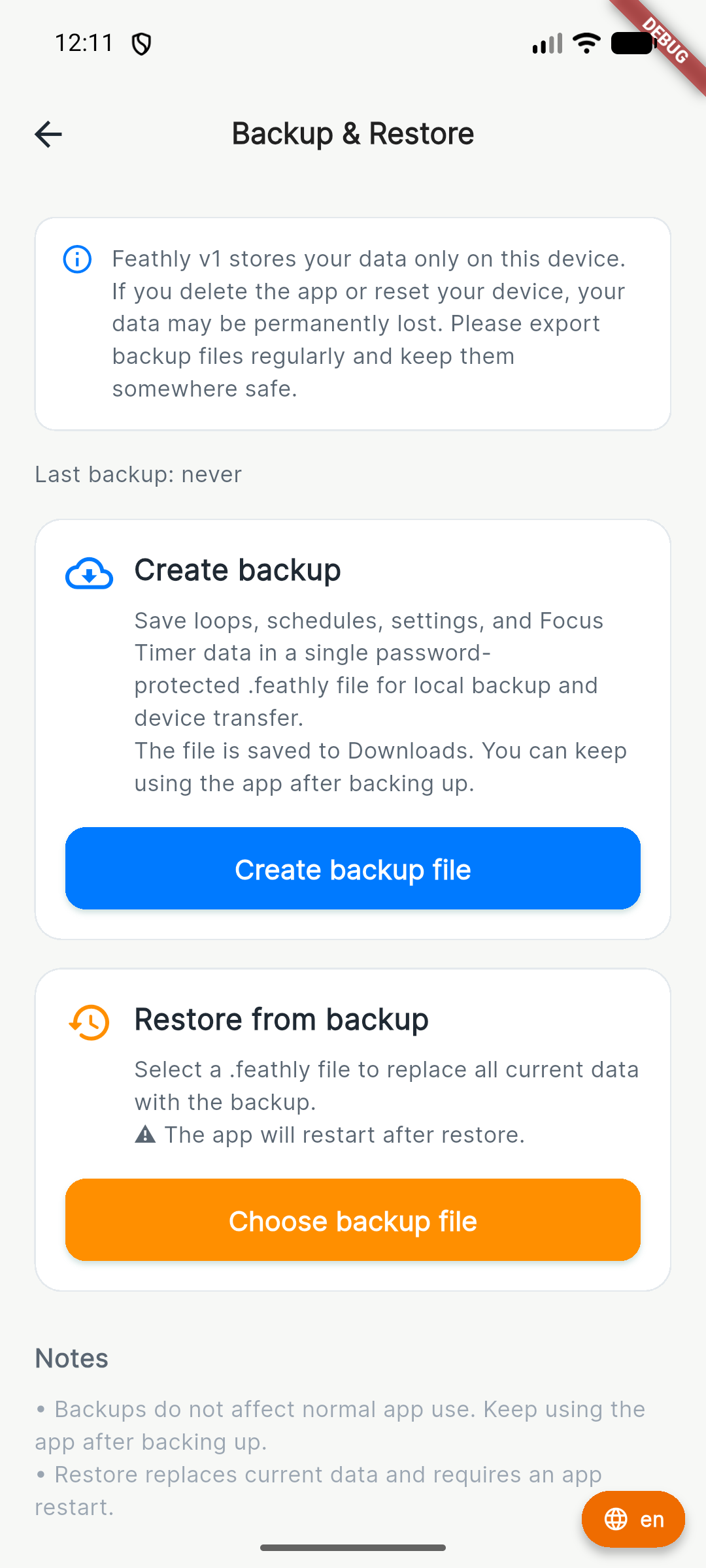
Open the Sync/Backup flow and read the instructions before creating or restoring a file.
Open Sync / Backup
Choose it from the main menu.
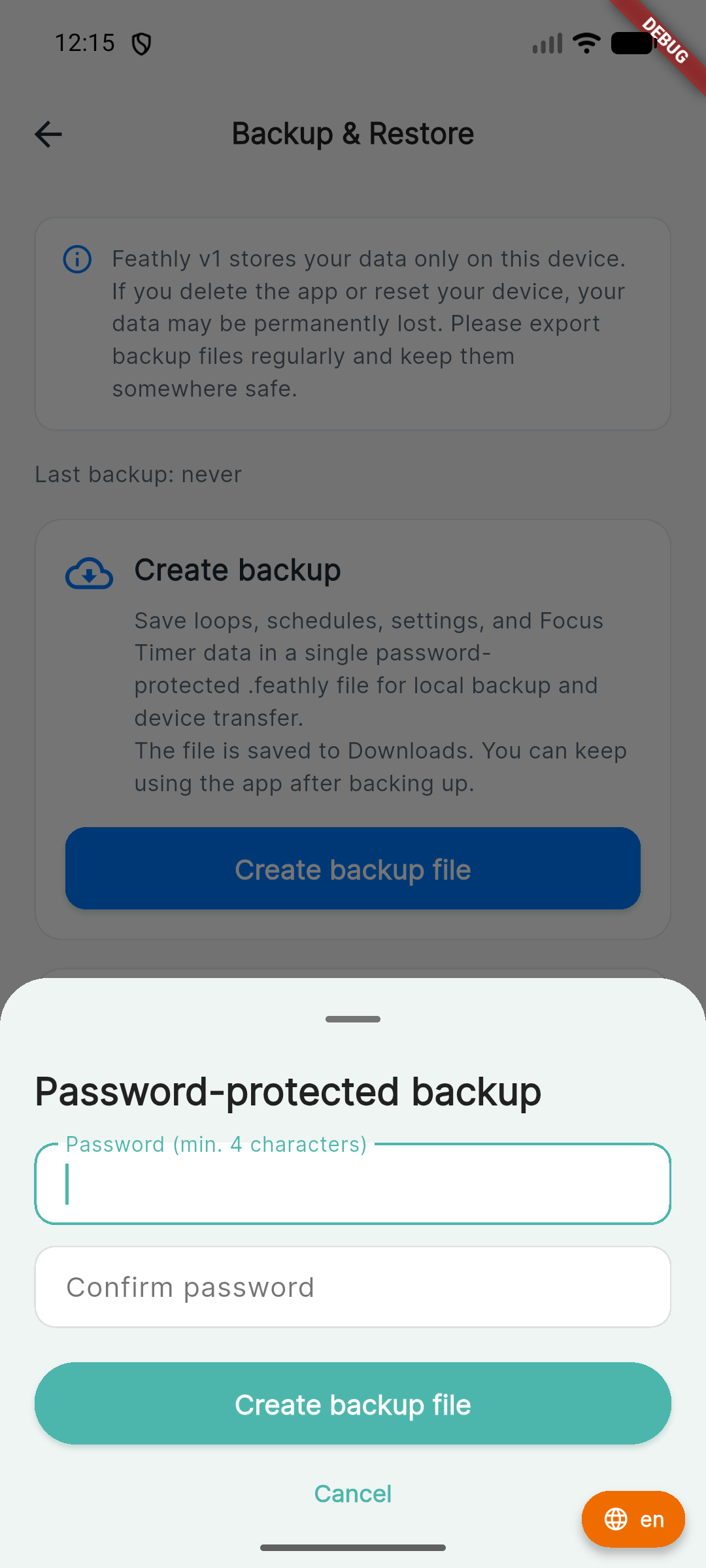
Create a backup
Select the backup action and save the file safely.
Protect the file
If you add a password, store it somewhere safe.
Restore carefully
Check the file and password before restoring.
Understand what is included and keep any backup password in a safe place.
Confirm the selected file and understand whether current data will be replaced or merged.
Weekly Insights is available to all current users. Open Insights from the main menu to review your weekly learning and activity summary. Feathly Pro Lifetime removes the bottom banner ad and supports Feathly development.

Weekly Insights is available to all current users. Use the summary as a helpful reference, not as pressure to add more work.
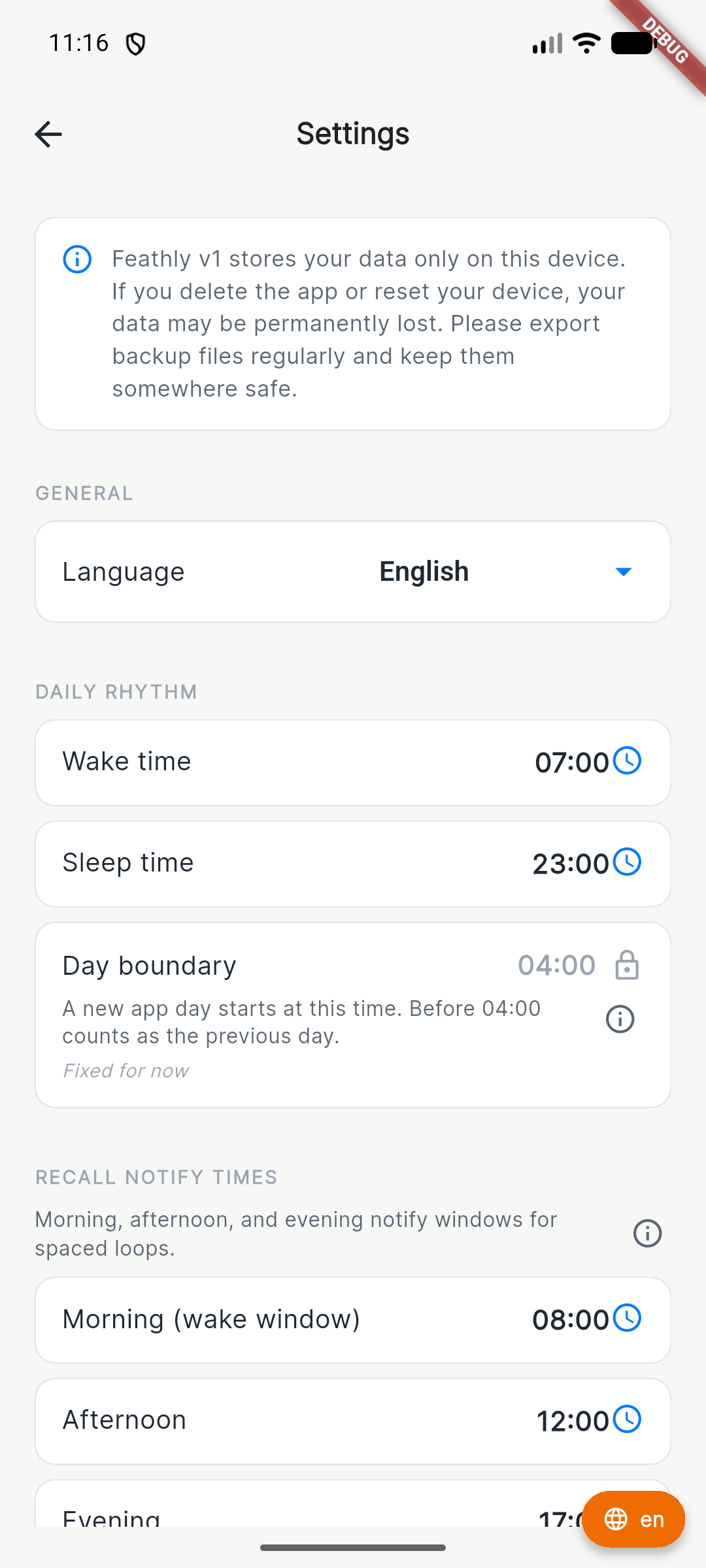
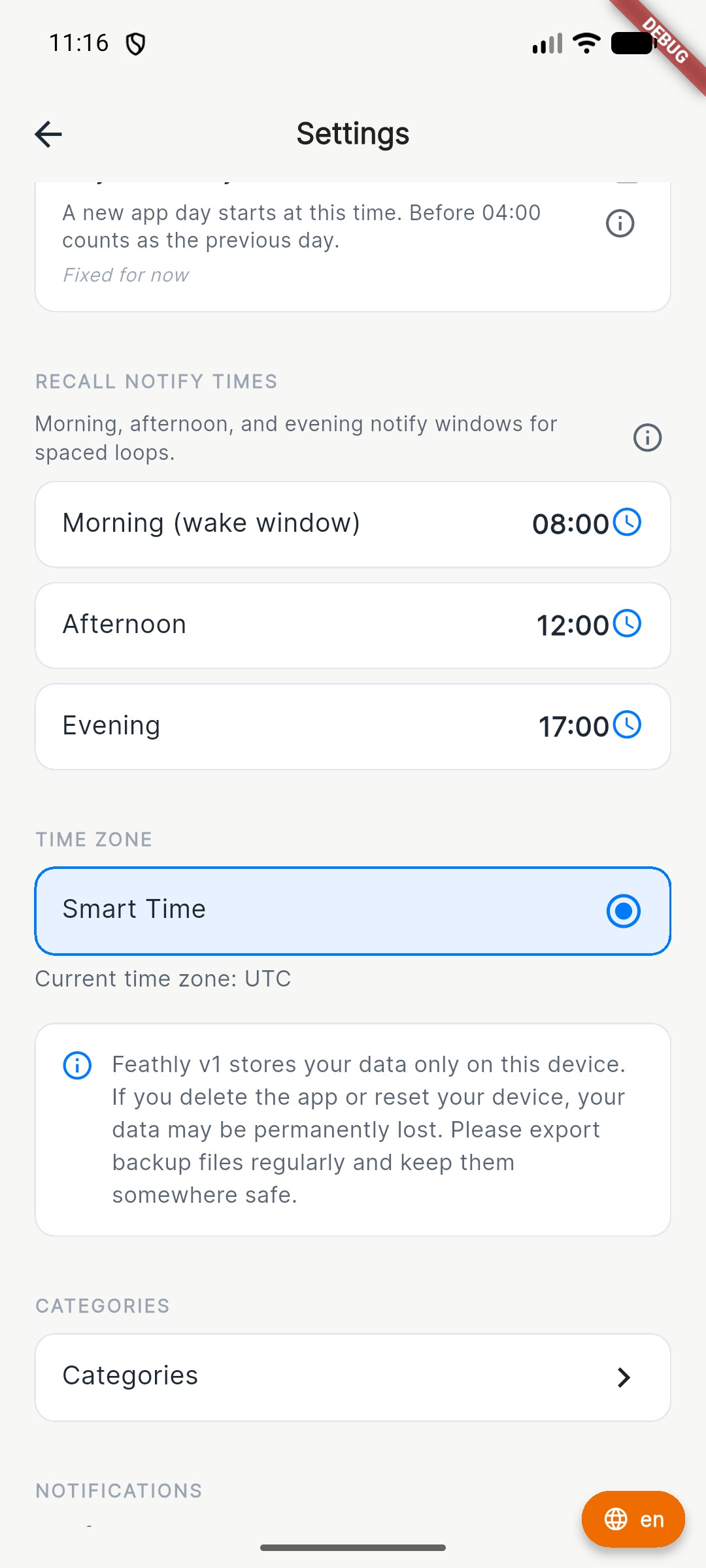
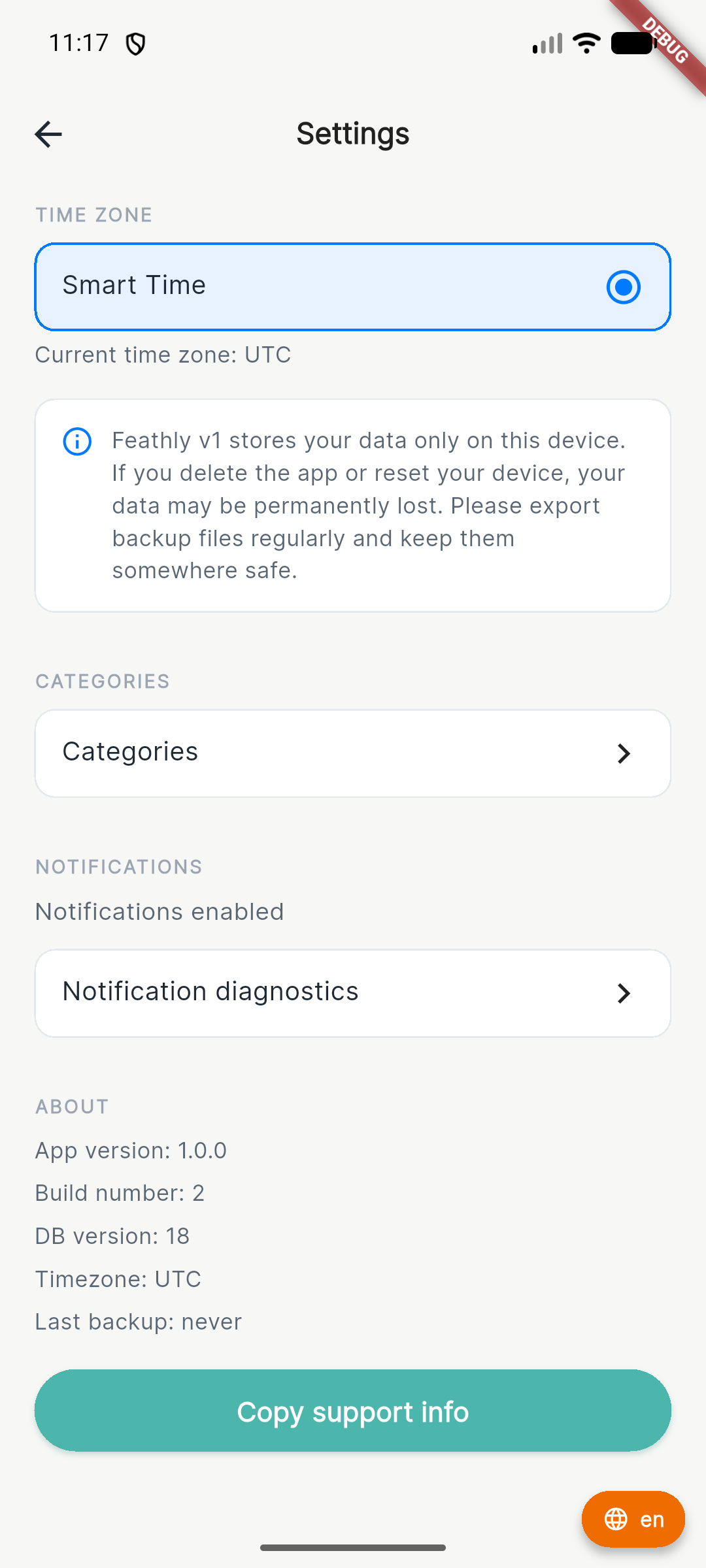
Open the top-left Menu and select Settings.
Review available features and the purchase or restore guidance before continuing to Google Play.
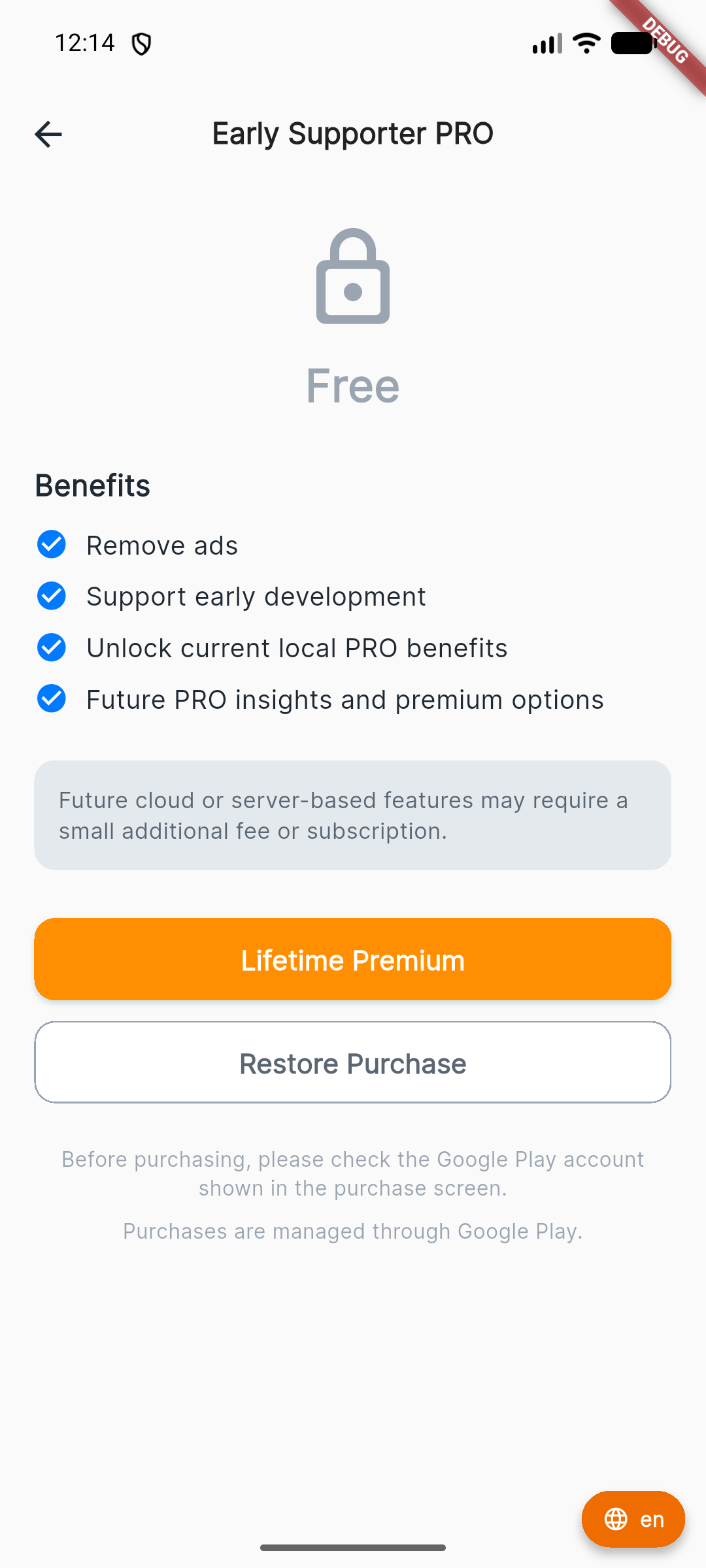
No real purchase was performed for this screenshot. Confirm the account, price, and terms displayed by Google Play before approving payment.
For a reproducible issue, include the device, Android version, app version, screen, exact steps, expected result, and actual result.
Notification behaviour, backup, billing, account questions, and other common topics.
Do not include personal schedules, email addresses, payment details, purchase tokens, or backup passwords in screenshots.